


- Chief Technology Officer
- Author
 28
Oleksii Volochniuk
Oleksii Volochniuk
Author
28
Oleksii Volochniuk
Oleksii Volochniuk
Author
 Ievgen Chemborysov
Edited
Ievgen Chemborysov
Edited
 28
28
There are quite a few ways to reinstall the OS on a dedicated server. In this article we will cover these options:
All examples in this article were done on our own dedicated servers from BlueServers ([Intel Xeon E-2286G] Supermicro and a Dell PowerEdger [Intel Xeon E5-2640])
In order to reinstall the system you should configure the correct boot order in BIOS/UEFI. For DCImanager installs (template or ISO), the server should be booted from PXE/iPXE. For Samba and Local ISO installations, the server should be booted from virtual CD/DVD.
We recommend this order: 1. Network -> 2. CD/DVD -> 3. Disk.
If the server ignores PXE or CD/DVD boot options and boots from the disk, remove the disk from the boot order, then add it back after setup is complete.
After installation, don't forget to unmount your ISO. Otherwise, the system will boot into the installer again.
For managing our dedicated servers we use DCImanager, but the steps shown should be pretty much similar on other managers.
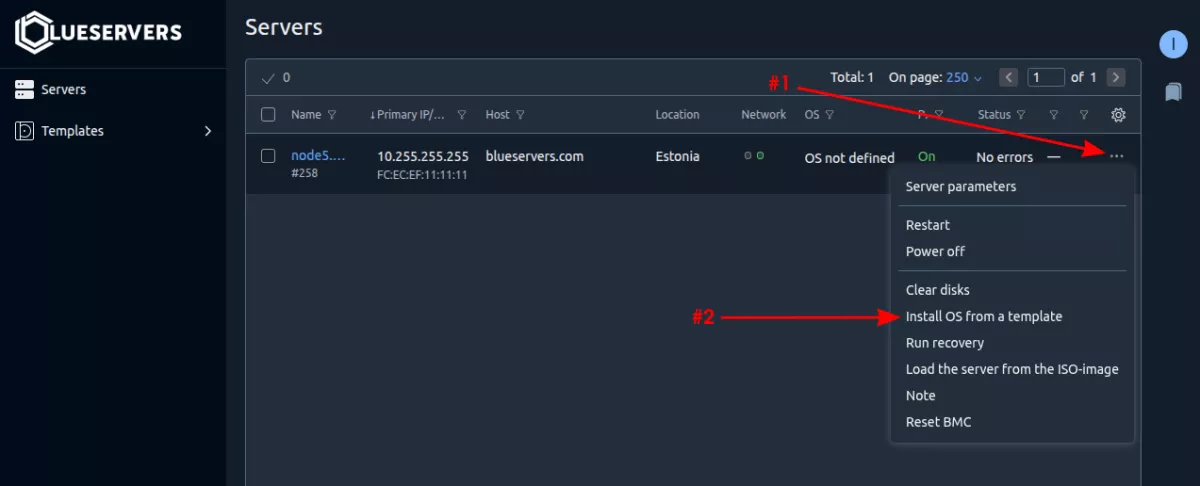
After logging in to DCImanager choose the server you want to install or reinstall the OS on, click the three dots in the top-right corner of the server and select "Install OS from a template".
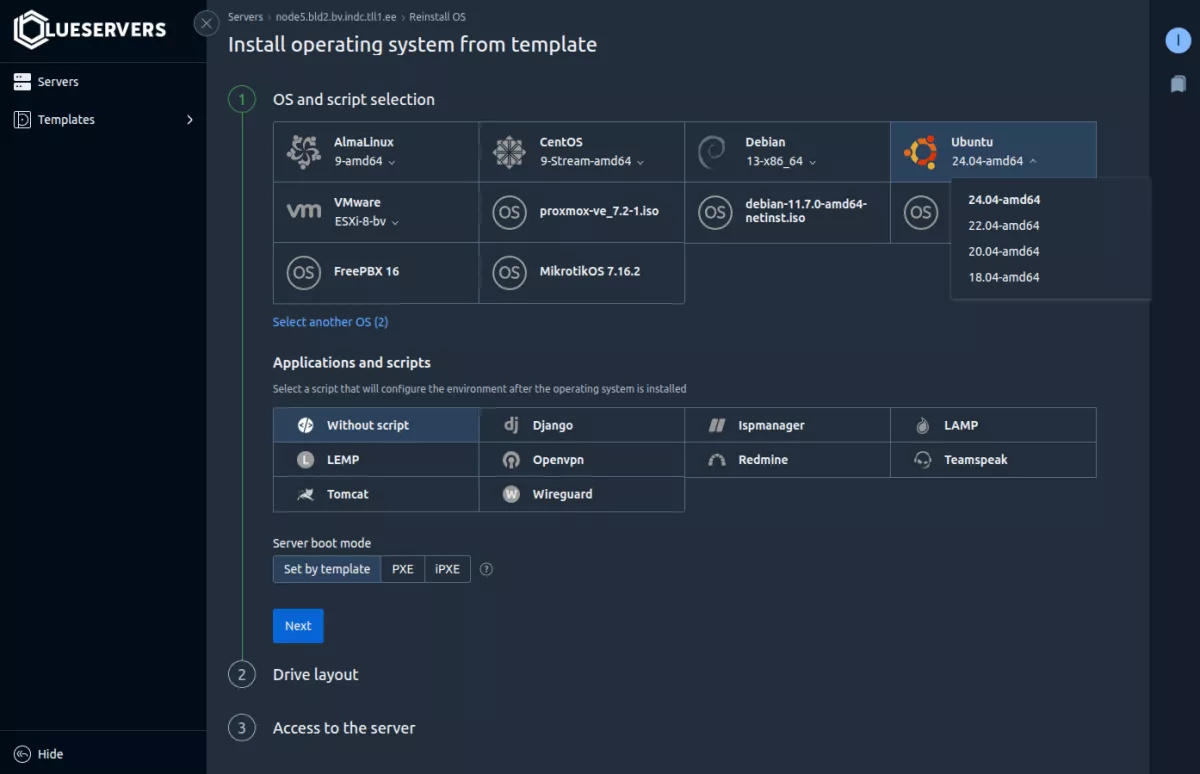
Then an OS install screen will appear with all the templates available.
Choose the desired OS and its version, in our example, Ubuntu 24.04. Also you can choose an application to be automatically installed on the new OS, for example LAMP, LEMP, OpenVPN, etc.
Now we need to choose the server boot mode: PXE or iPXE. In our experience, servers with 1 Gbps ports or less boot fine with PXE, while faster ones usually require iPXE. The "Set by template" option usually works fine, so you can just pick it.
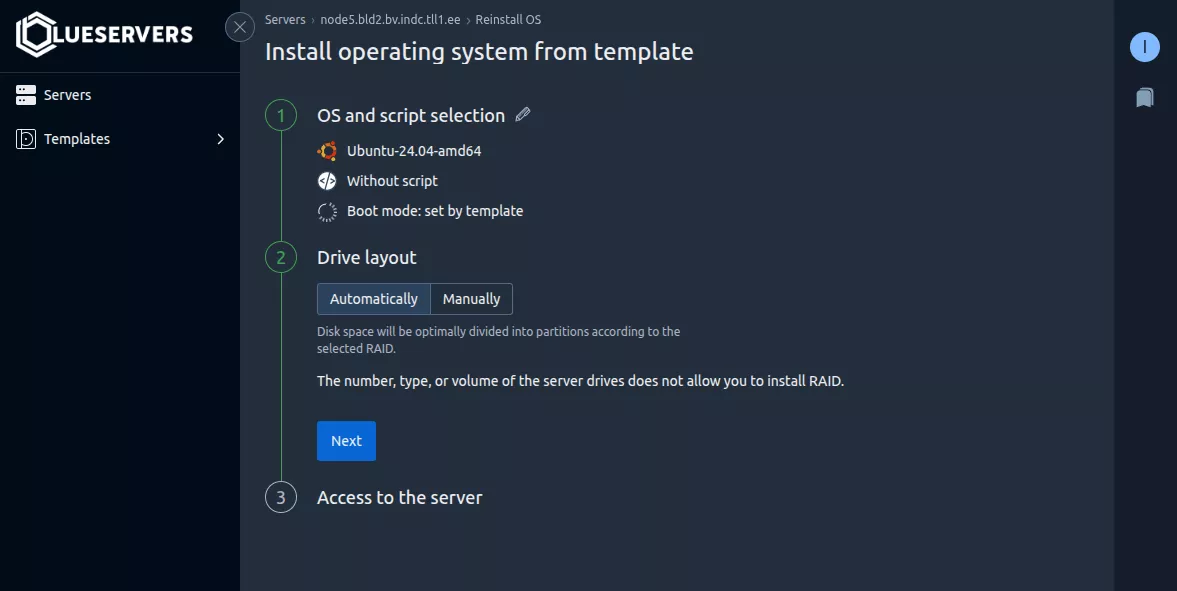
Here you can configure your drive layout exactly as you need. We will choose Automatically because it doesn't matter in our case. Also here you will be able to configure software RAID if you have two or more drives.
In this step we set the root password and hostname, add your SSH keys if needed, and press Install.
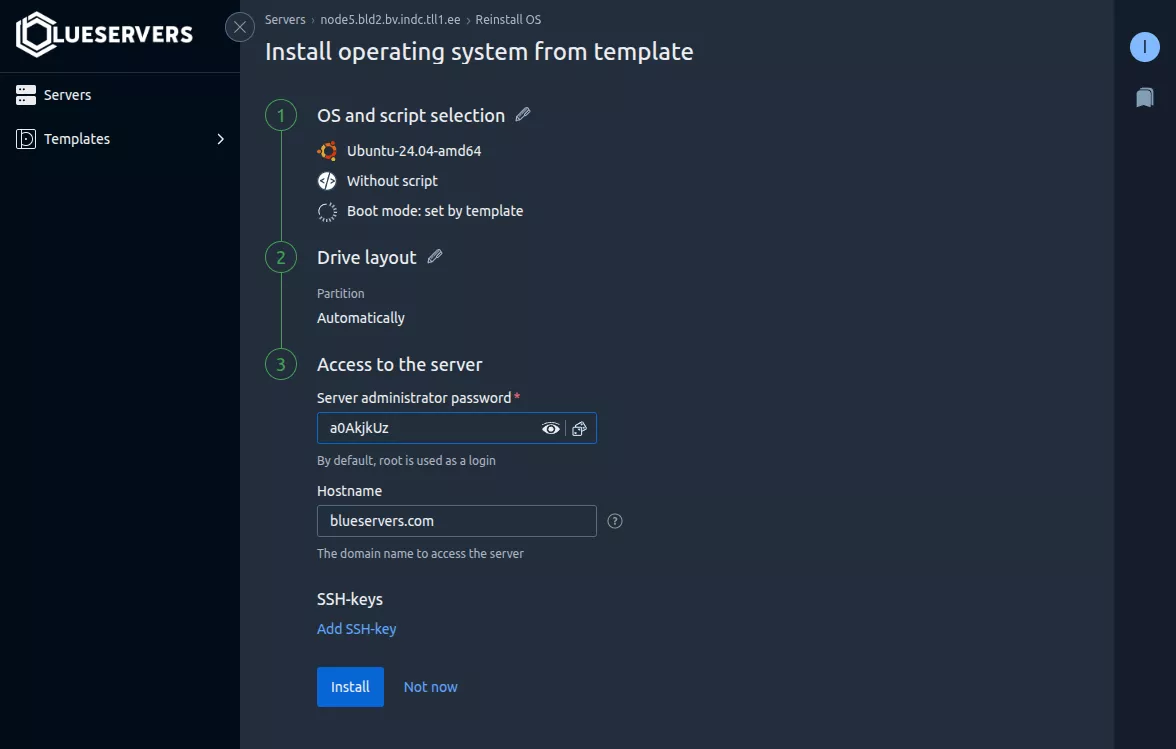
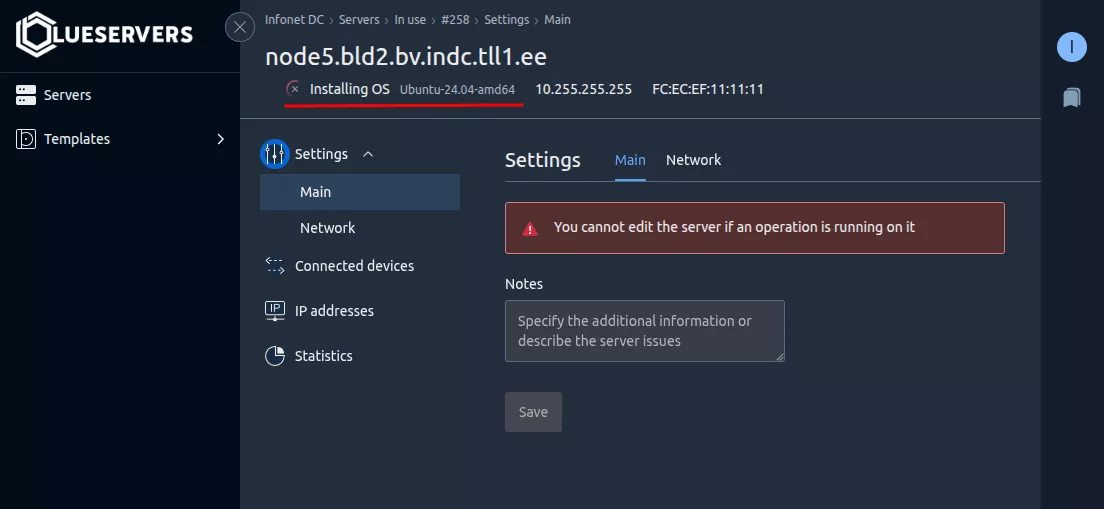
Now we are able to see a notification about installing the OS. After a few minutes the OS will be installed.
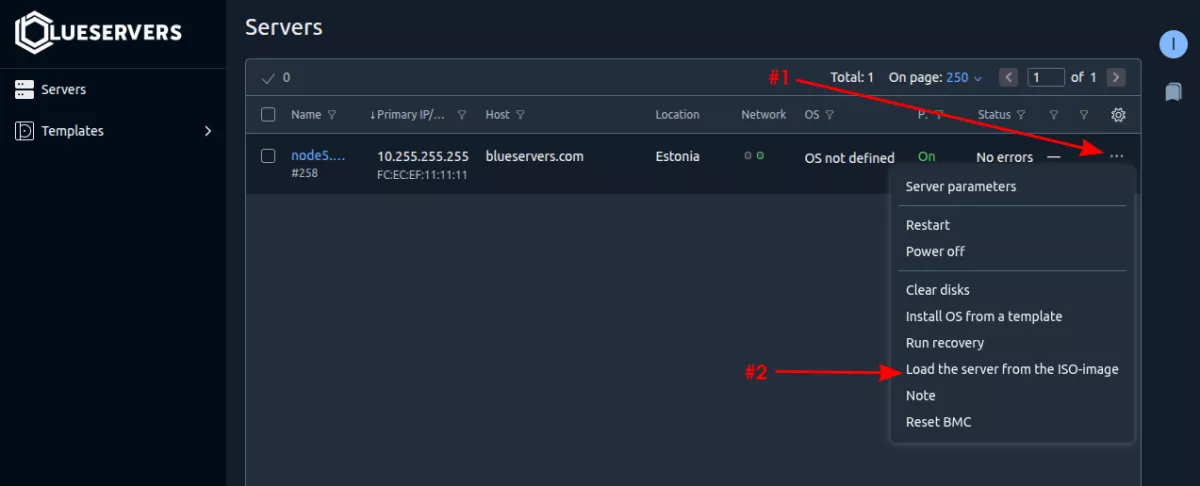
After logging into DCImanager click on your server, then click the three dots in the top-right corner and press "Load the server from the ISO-image". After pressing the button you will be notified.
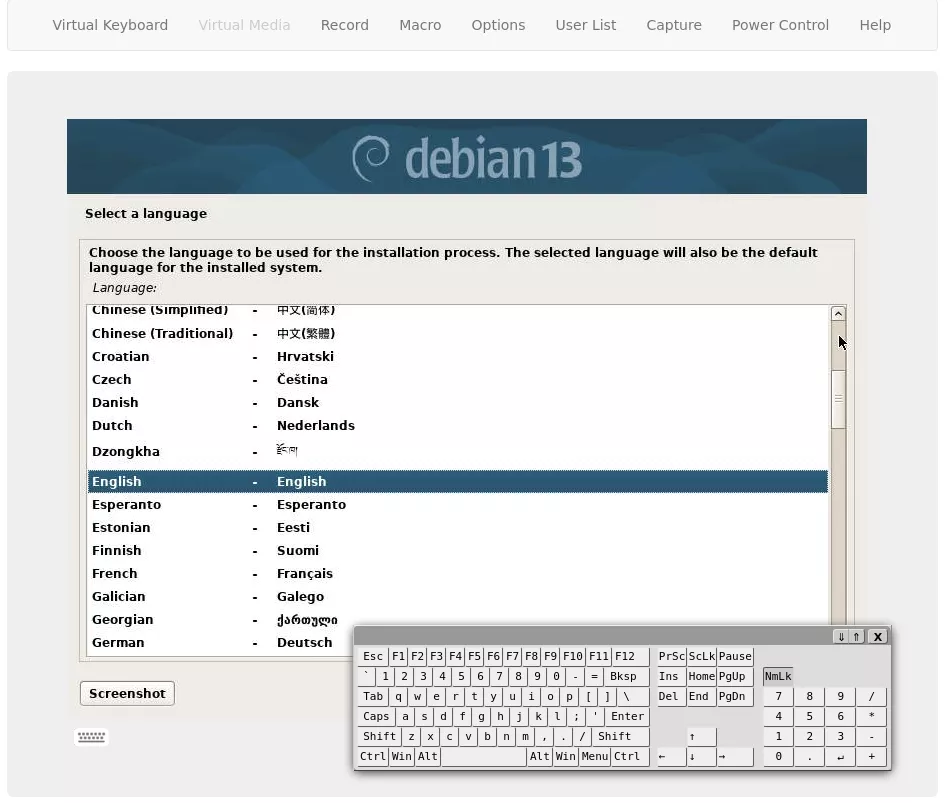
If you have changed the boot order to PXE, the system will automatically boot from the chosen ISO image and you will be able to install the OS manually via IPMI.
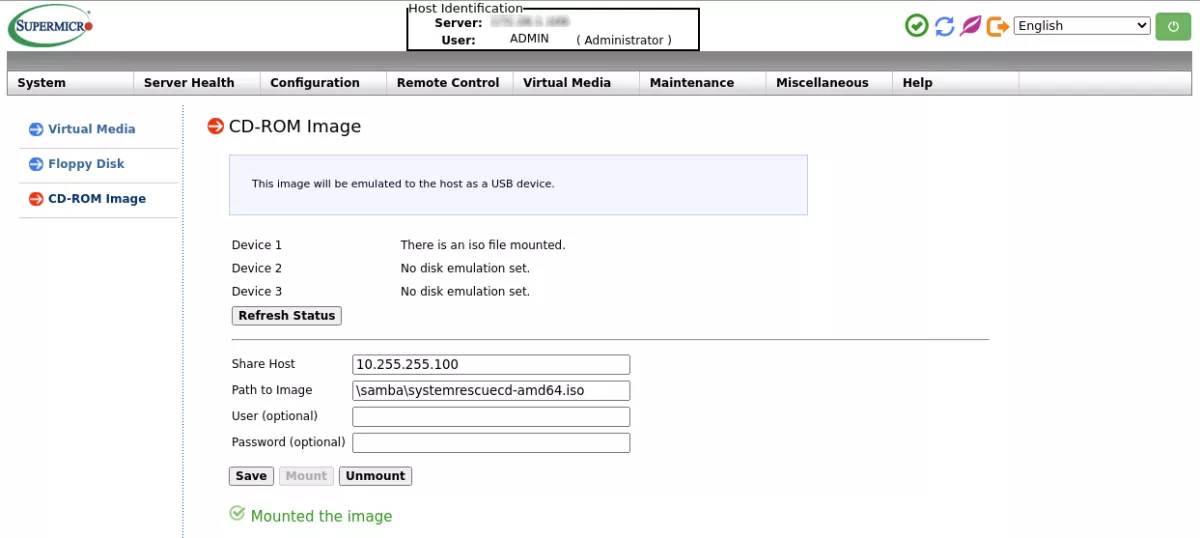
If you have a Samba share with an ISO image, you can mount it to the server via IPMI. This server has Supermicro IPMI, but all steps are pretty much the same with any type of IPMI such as iDRAC (Dell) or iLO (HPE). After logging into IPMI navigate to Virtual Media -> CD-ROM Image and enter the Samba share host and the path to the image, then click Mount. After that, you can boot the server from the ISO.
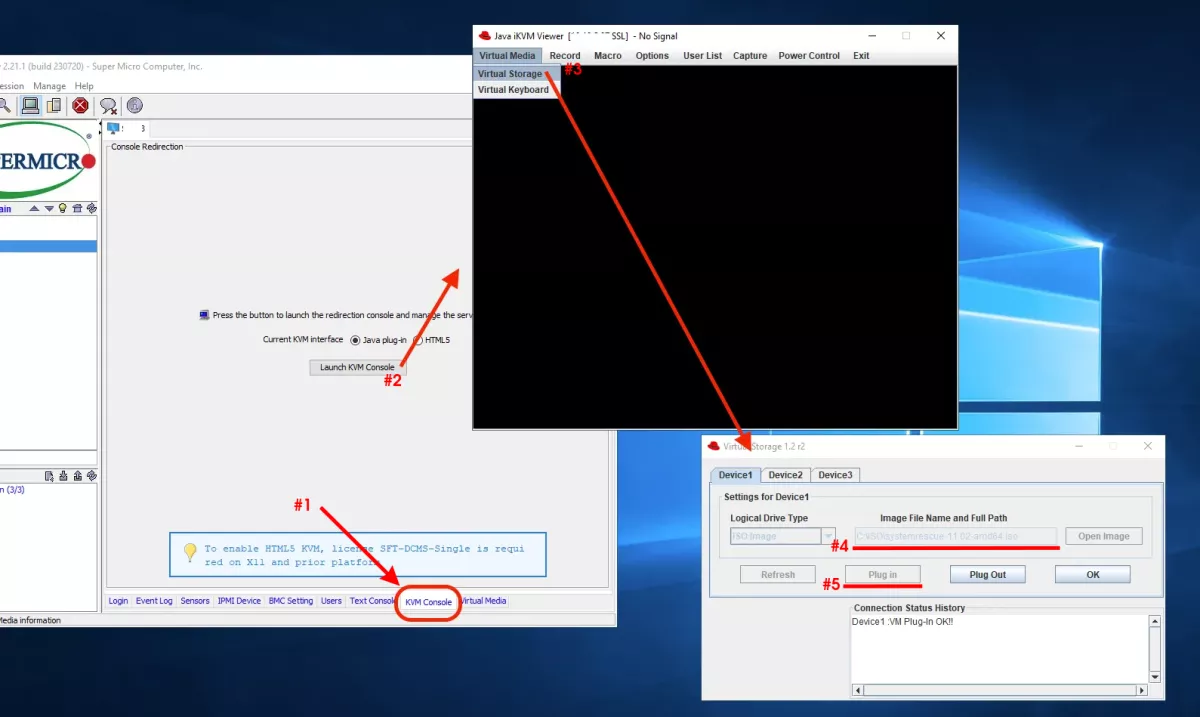
After logging into IPMI open the Java console by pressing Remote Control -> Remote Console -> Launch KVM Console. When it opens, go to Virtual Media -> Virtual Storage -> Device1 -> Open Image. After choosing an ISO image from your PC, press Plug In and OK. Now restart the system with CD/DVD as the boot device and you will see an installation screen.
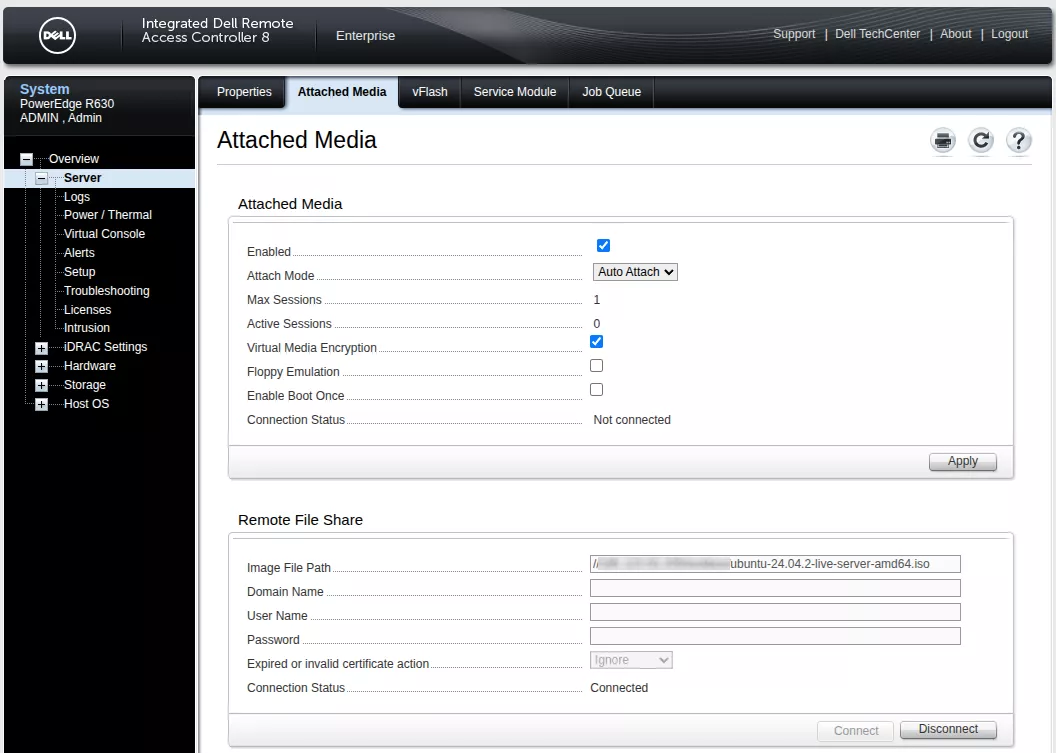
In order to install an OS via Dell Lifecycle Controller, you should mount an ISO via a Samba share, a local mount or a USB flash drive first. So what's the point? The point is that you can configure RAID and perform an unattended install. An unattended install is basically an auto-instruction: you prepare an answer file in advance, and the installer reads every answer from it instead of asking you.
Here we mounted the ISO via a Samba share, the same way as on Supermicro, but in iDRAC the share host and the path to the image are entered together in one field, for example: //192.168.1.10/samba/ubuntu-24.04.2-live-server-amd64.iso
While the system is booting, press F10 so you can enter Dell Lifecycle Controller. Then choose the OS Deployment option from the menu.
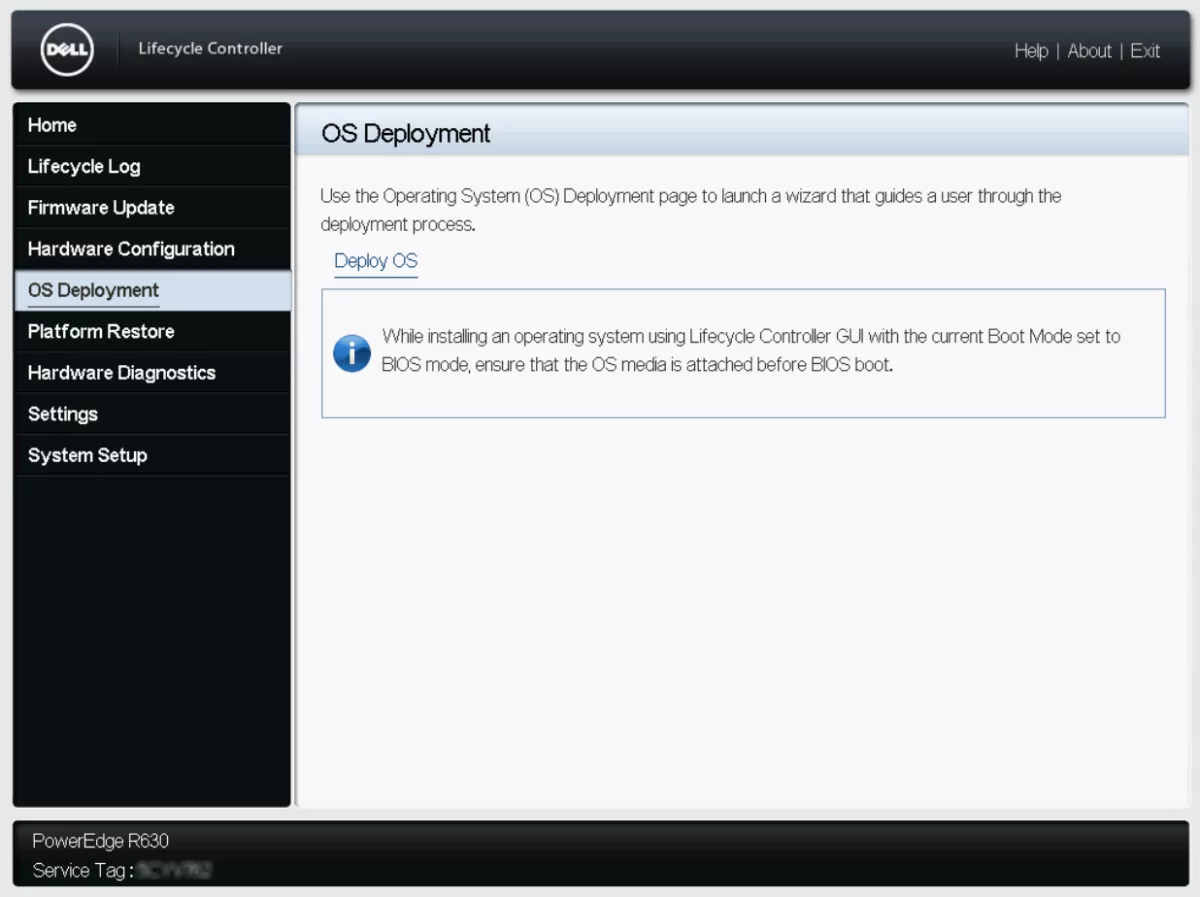
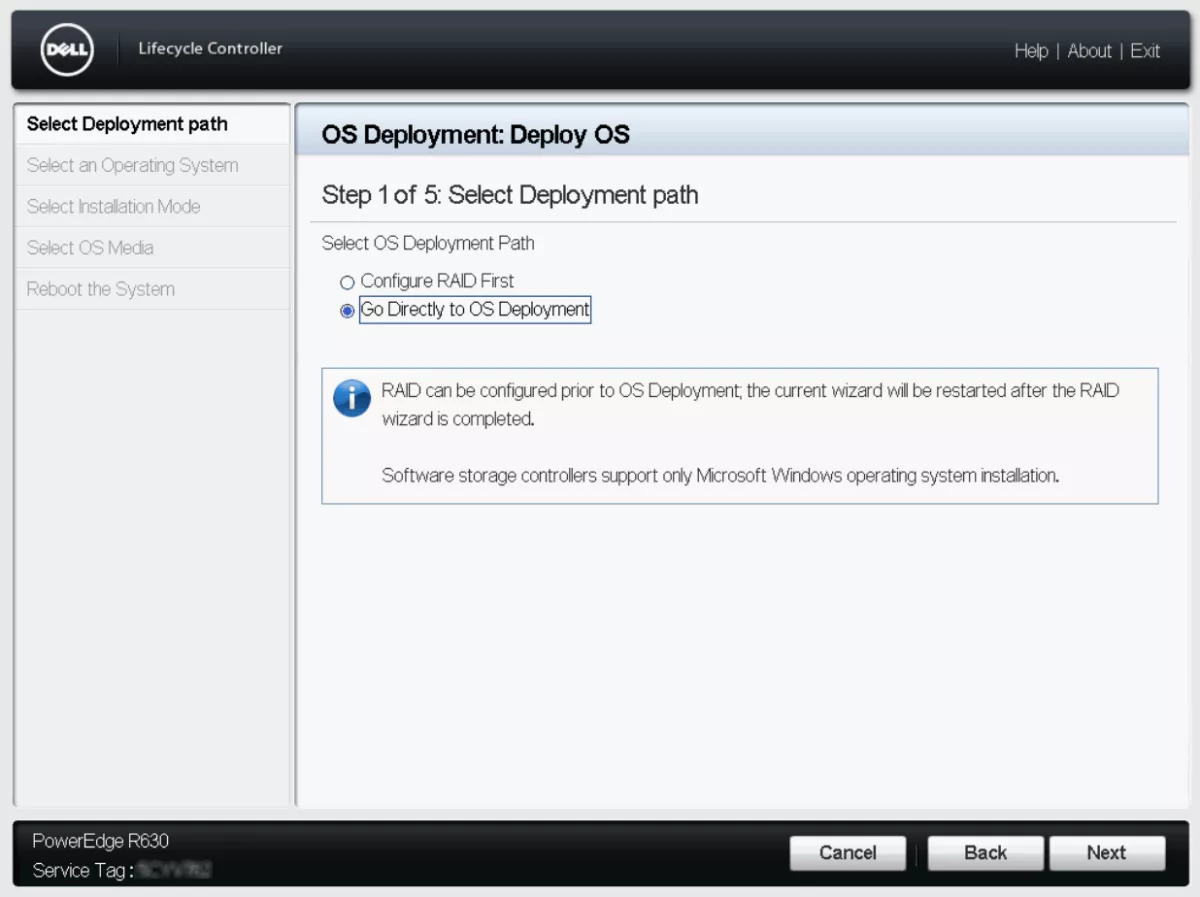
Configure RAID if needed or go directly to OS Deployment and press Next.
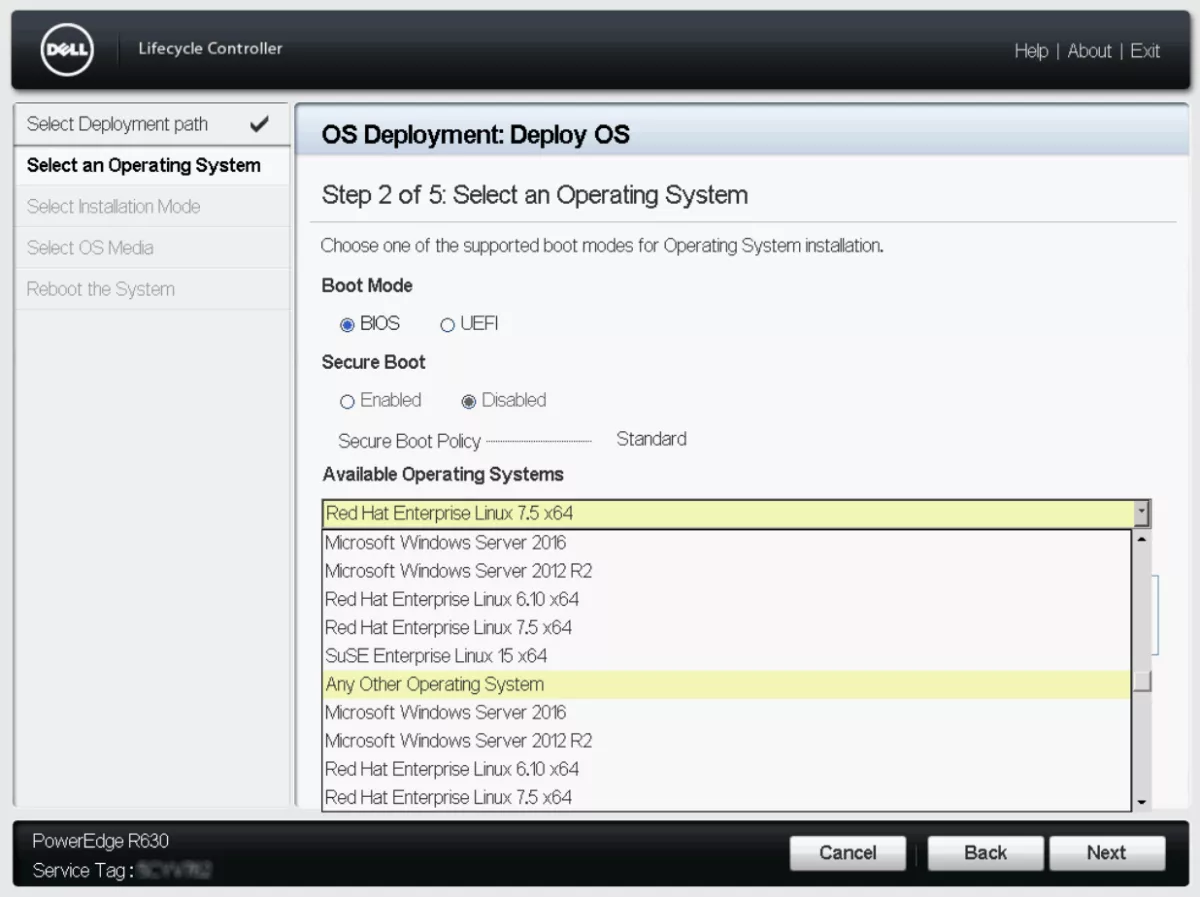
Choose the required boot mode: (BIOS or UEFI), enable Secure Boot if needed and then choose "Any Other Operating System" from the OS menu and press Next.
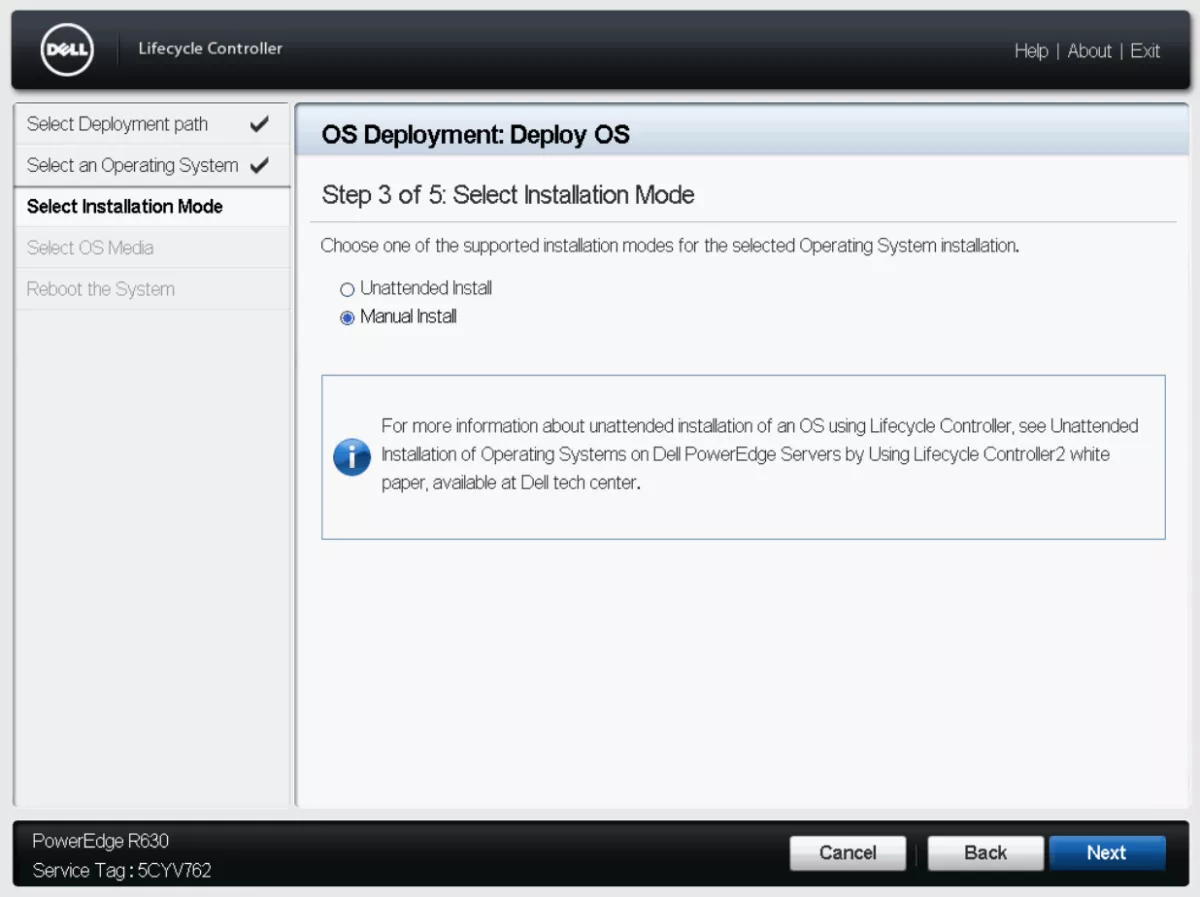
Select unattended install if you have an auto-instruction, otherwise press Manual Install and then press Next.
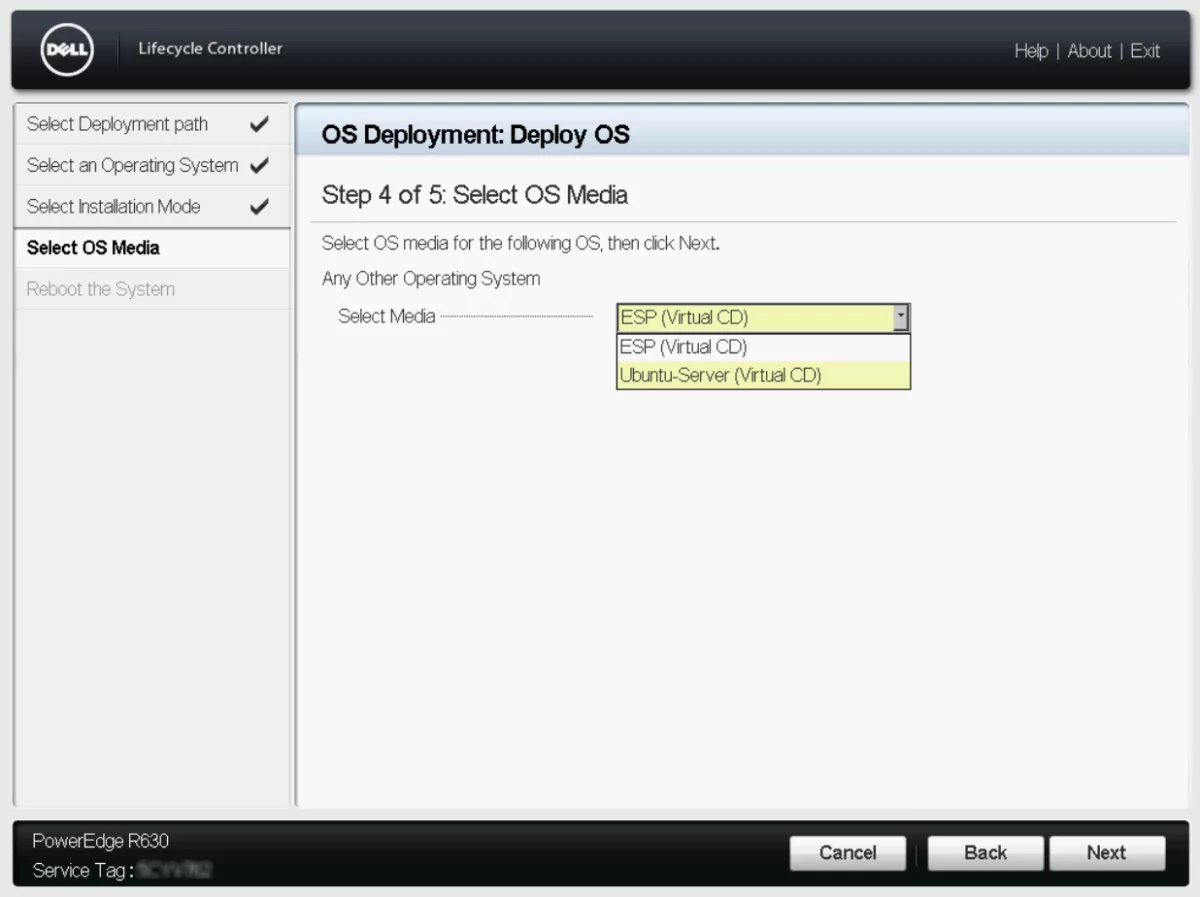
From the Select Media menu choose the ISO mounted in the first step and press Next.
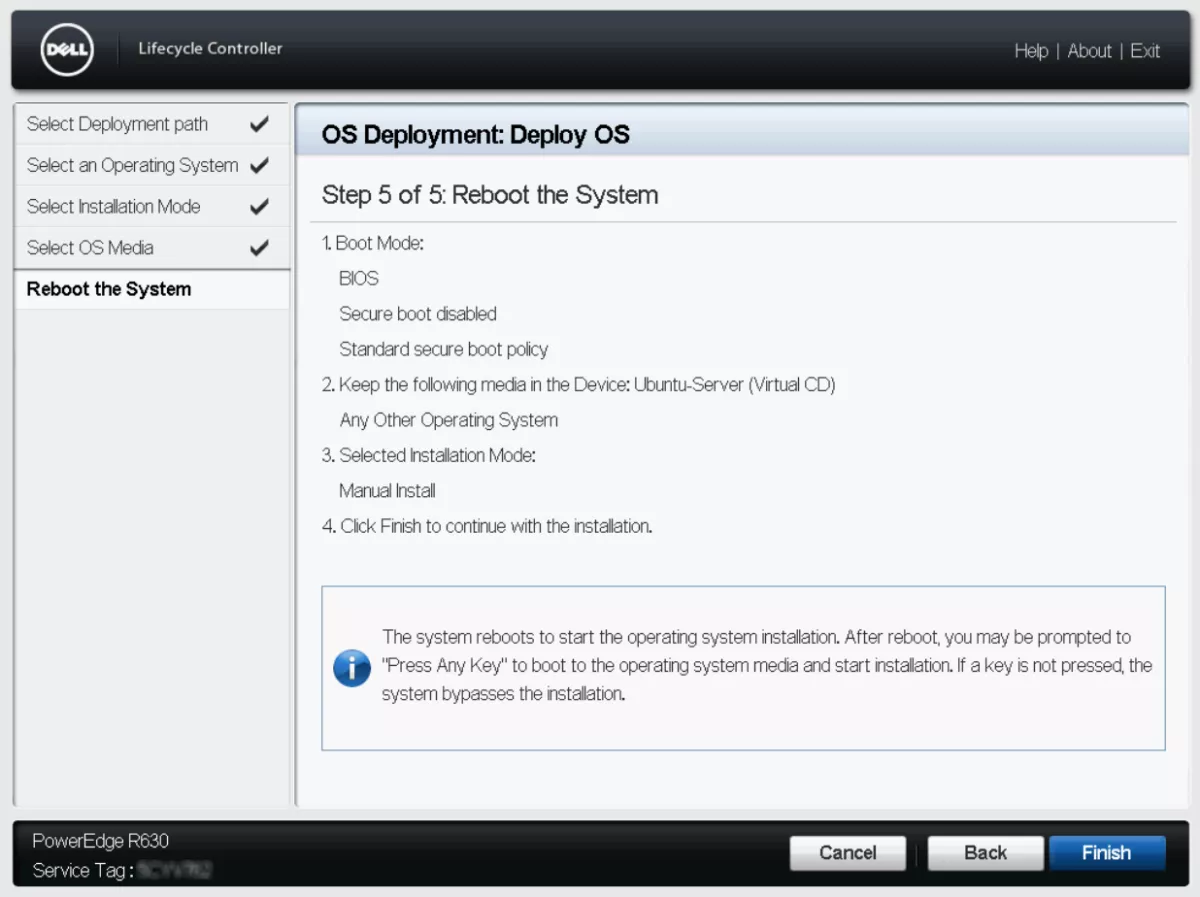
After all those steps, you will see a list of what you have chosen. Press Finish, and the system will boot from the ISO so you can install the OS. It's as simple as that.
Now you know how to reinstall the OS on a dedicated server in five different ways. If you need a reliable didecated server with IPMI/iDRAC access, take a look at BlueServers. And if something goes wrong during the install, our support team is available 24/7.



Start for free and unlock high-performance infrastructure with instant setup.
Your opinion helps us build a better service.